Run the screens from your phone
Join the board from your phone and move the Mass along.
Volunteers who run the screens during Mass
Screens captured from the MassCast demo world on 2026-11-14. Every name, address and number on the screens is invented. Prepared 15 November 2026.
You move the wall from part to part of the Mass with your own phone. No account and no app to install: just a join code.
Before you start
- A phone with a web browser, and the controller address your parish gave you.
- A join code from the sacristy or the parish office.
Steps
1. Make a join code for the volunteer
Preparer or administrator
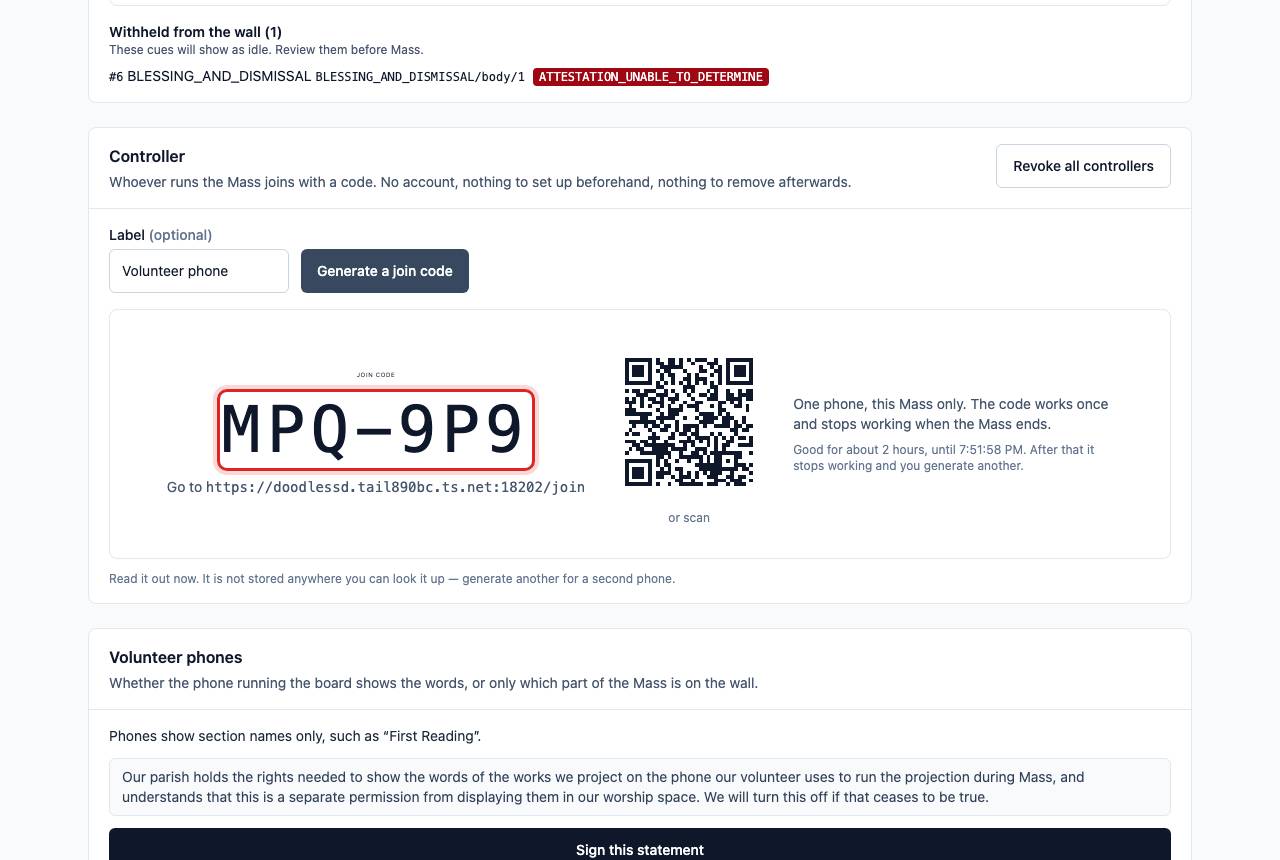
- On the Run the Mass page, under Controller, type a label if you like, for example the volunteer’s name.
- Press Generate a join code.
- Give the code to the volunteer.
Tip: The volunteer needs no account. Revoke all controllers switches every phone off at once.
2. Join from your phone
Volunteer
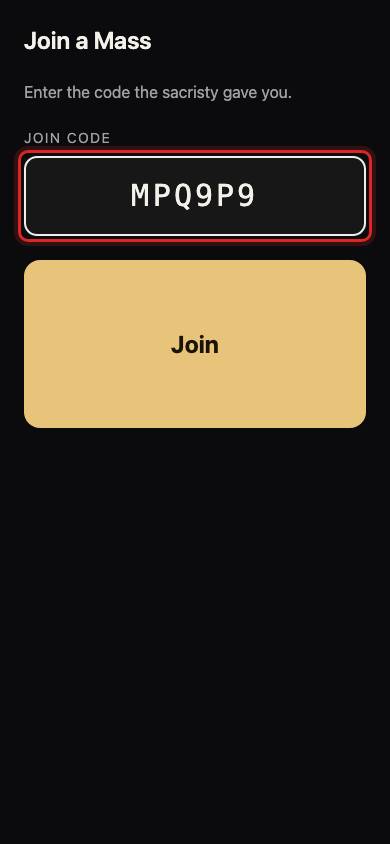
- On your phone, open the controller address your parish gave you.
- Type the join code from the sacristy.
- Press Join.
3. Get to know the controller
Volunteer
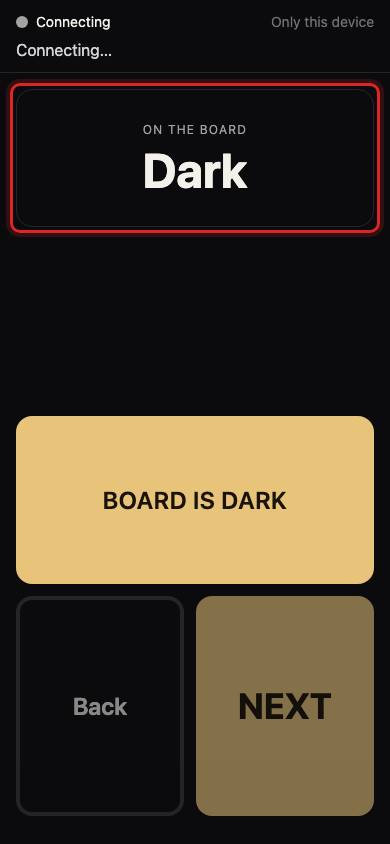
- The top line shows you are Live.
- On the board shows what the wall shows now. Before Mass it says Dark.
- The big NEXT button moves the wall on by one. Back moves it back one.
4. Press NEXT to start
Volunteer
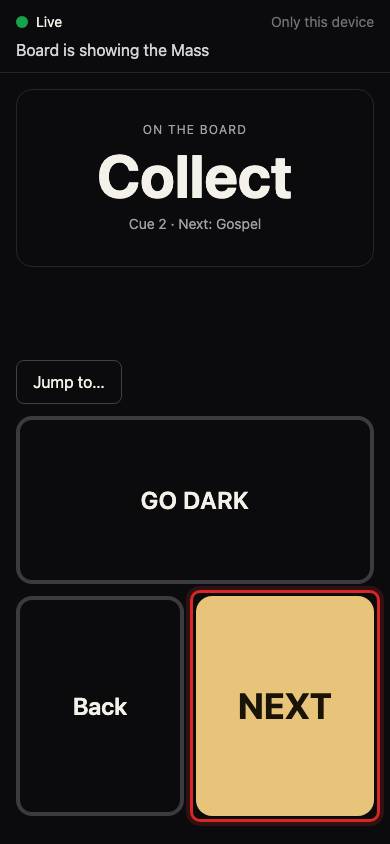
- When Mass begins, press NEXT.
- Press NEXT again each time the Mass moves to the next part.
- Some steps are only headings, such as Introductory Rites. The wall stays dark for those; press NEXT again when the words should appear.
You should see: On the board shows the part now on the wall, and the button shows what comes next.
5. The wall follows the phone
At the screen
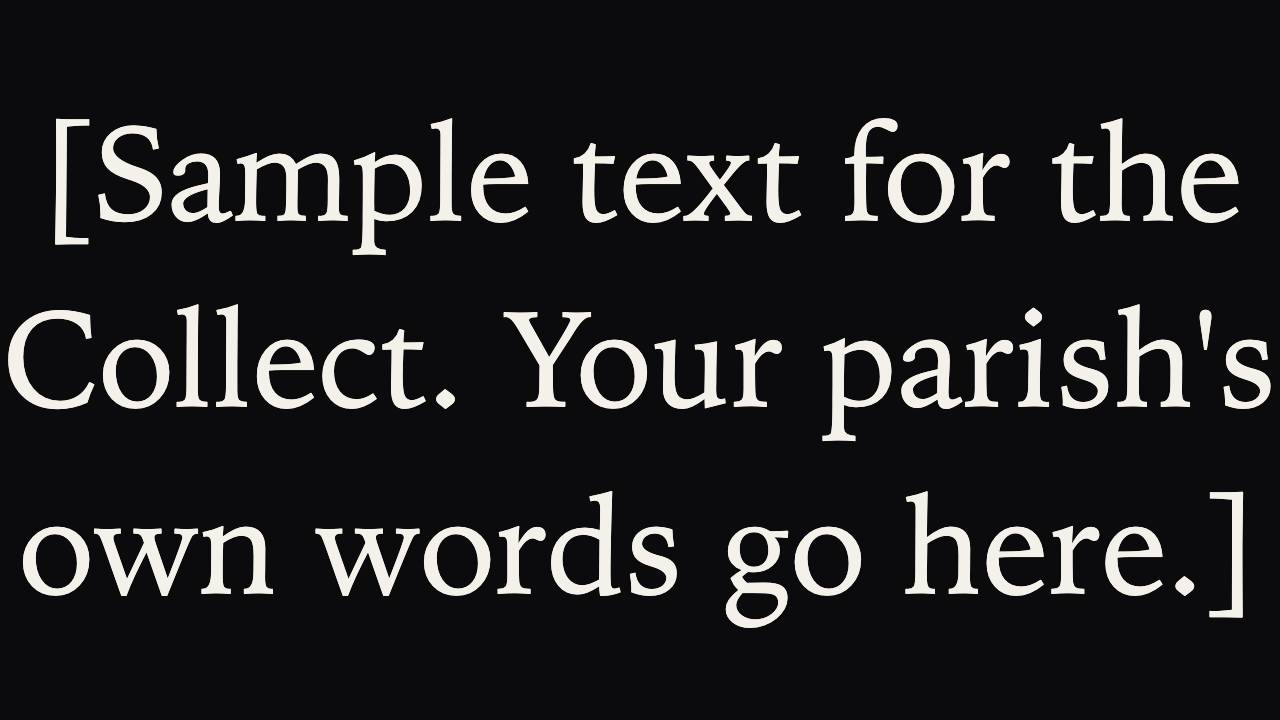
- Look at the wall. It changes as soon as your tap goes through.
Tip: Tap once and wait. A quick double tap counts once, so the wall never jumps ahead by mistake.
6. Jump to another part
Volunteer
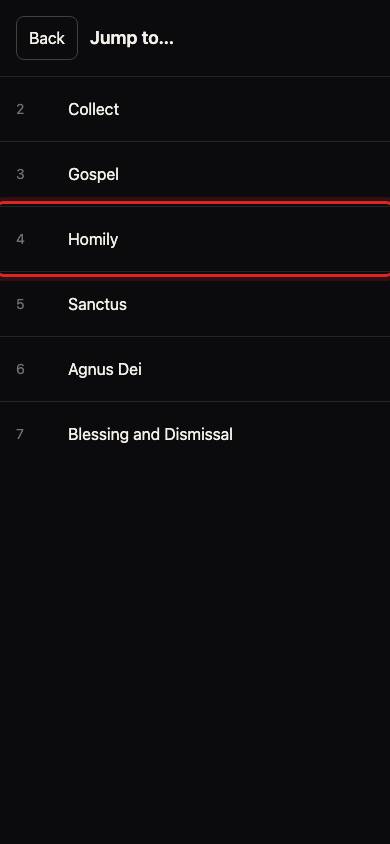
- If the Mass skips ahead, press Jump to….
- Tap the part the Mass has reached.
You should see: The controller comes back, and the wall shows the part you tapped.
If something looks wrong
- If Join says the code is not valid, ask for a new one. Each code works once.
- If the dot at the top is not green, your phone has lost its connection. Get back on the parish Wi-Fi or mobile data; the controller reconnects by itself.
- GO DARK blanks the wall at once, for example during a long pause. NEXT or Jump to… shows a part again.
The pictures were taken automatically on 2026-11-14 from a test parish with sample wording. Your screens show your own parish and your own words.