Set up a wall board for a Mass
Register and pair a wall board for a Mass.
The parish administrator, and whoever is standing at the wall screen
Screens captured from the MassCast demo world on 2026-11-14. Every name, address and number on the screens is invented. Prepared 15 November 2026.
A board is the screen on the wall. You register it for a Mass on the Run the Mass page, then type a short code into the screen itself.
Before you start
- A published Mass (see Review, release and publish a Mass).
- The screen switched on, with a web browser open, and the board address your parish was given.
Steps
1. See your rooms
Parish administrator
- Choose Venues in the menu.
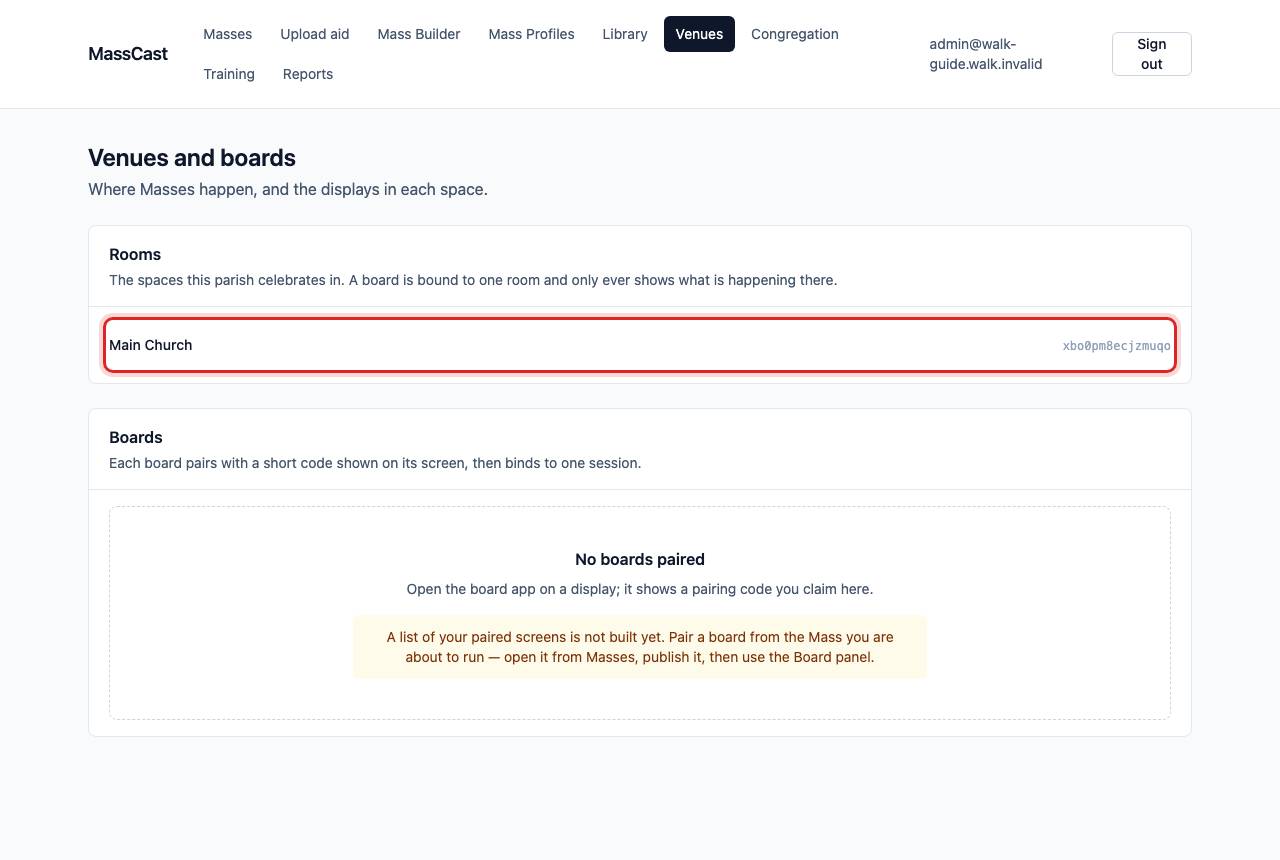
- Under Rooms, each space your parish celebrates in is listed with its id underneath. A board belongs to one room and only shows what happens there.
Tip: Rooms are set up for you when your parish joins MassCast. Ask your MassCast contact to add one.
2. Register the board for this Mass
Parish administrator
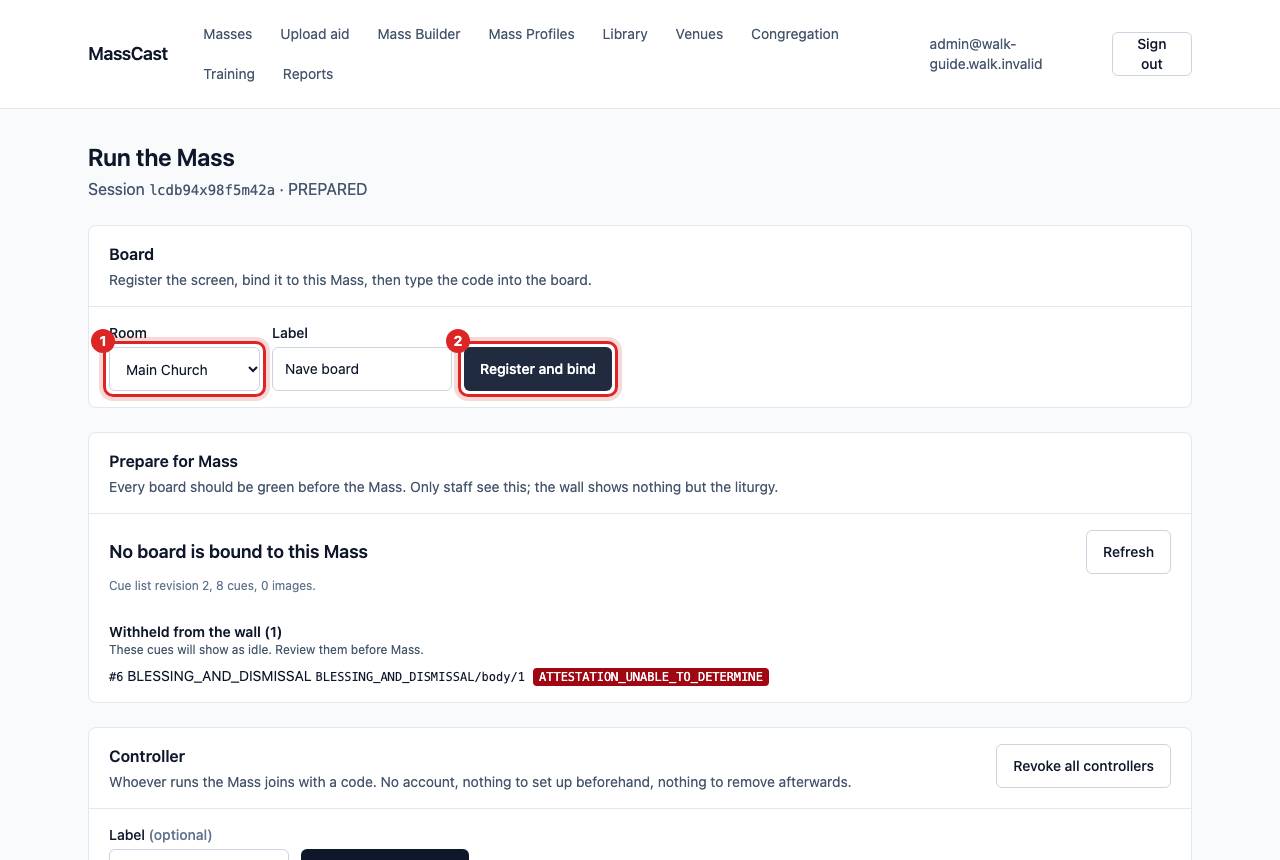
- Publish the Mass first. The Run the Mass page opens.
- Under Board, choose the Room the screen is in.
- Give the screen a Label you will recognise, for example “Nave board”.
- Press Register and bind.
3. Note the pairing code
Parish administrator
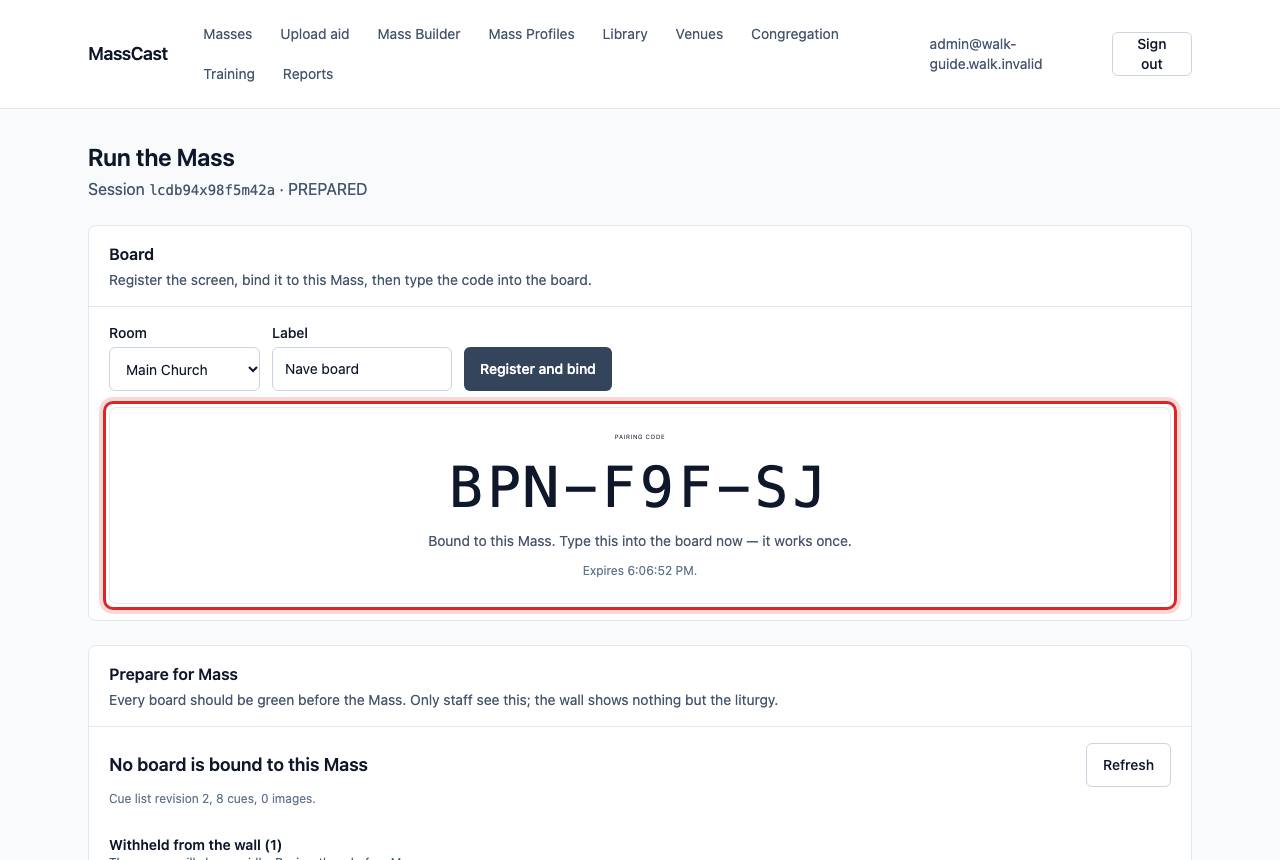
- MassCast shows a short pairing code.
- Take it to the screen, or read it out to whoever is standing at it.
Tip: The code works once, for a short time. If it runs out, press Register and bind again.
4. Open the board on the screen
At the screen
- On the computer or TV stick that drives the wall screen, open the board address your parish gave you in a web browser.
- Make the browser full screen.
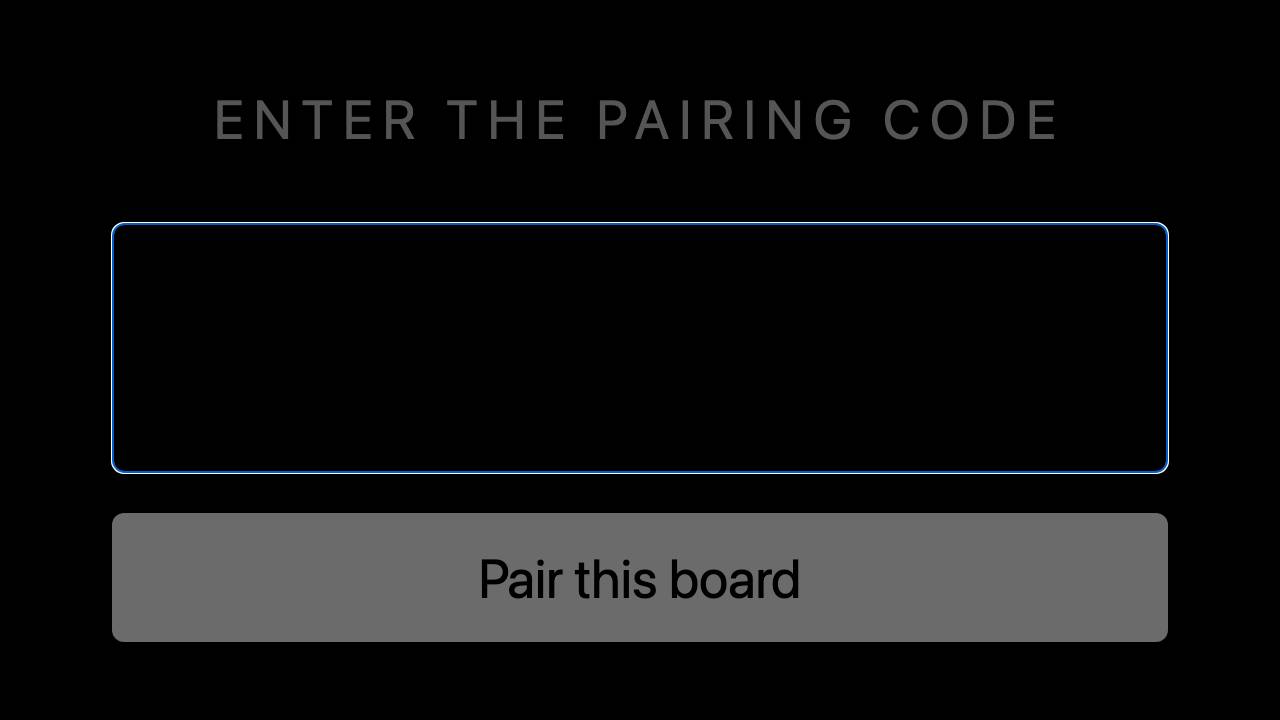
You should see: A black screen that asks for the pairing code.
5. Type the pairing code
At the screen
- Type the pairing code from the Run the Mass page.
- Press Pair this board.
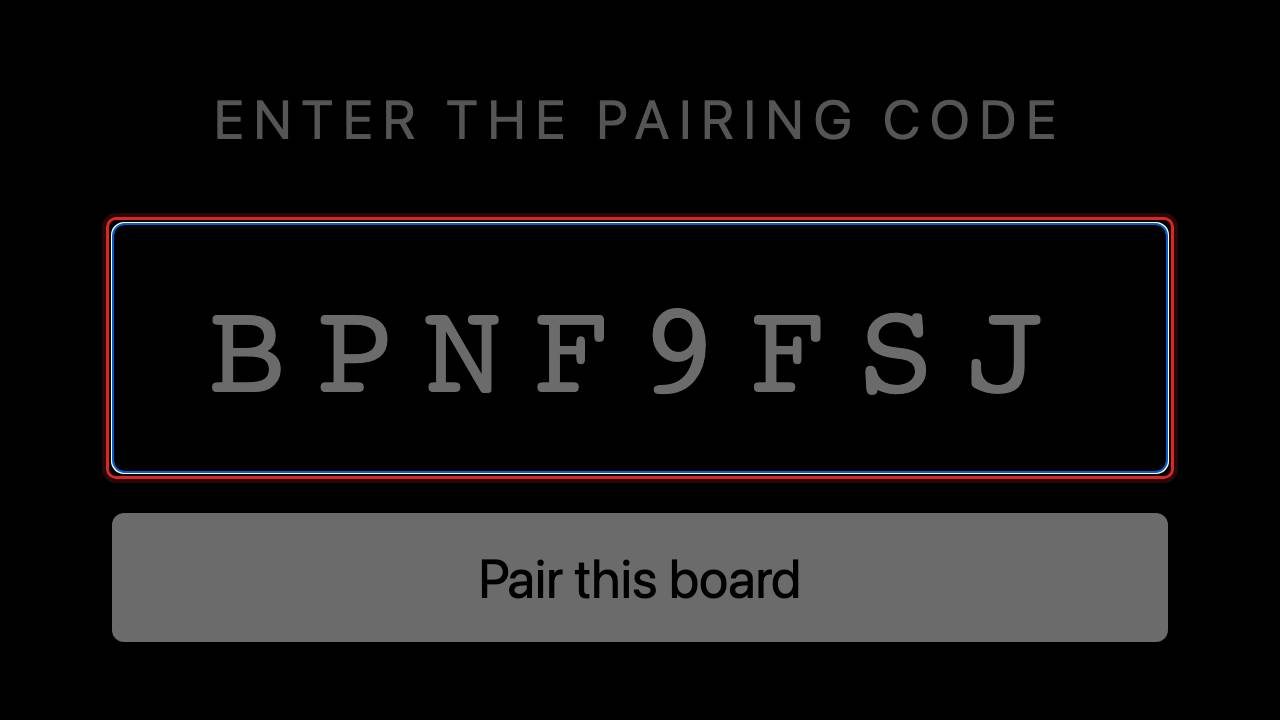
6. The board waits, dark
At the screen
- Leave the screen as it is. Nothing else needs doing at the screen.
You should see: A plain dark screen. The board shows nothing until the volunteer starts the Mass, and goes dark again whenever it is unsure. That is on purpose.

7. Check the board is ready
Parish administrator
- Back on the Run the Mass page, find Prepare for Mass.
- Press Refresh. Each board lists four checks: the cues are stored on it, its pictures are stored, its clock is right, and it is connected.
You should see: Every check green before Mass begins. Anything red names what is missing.
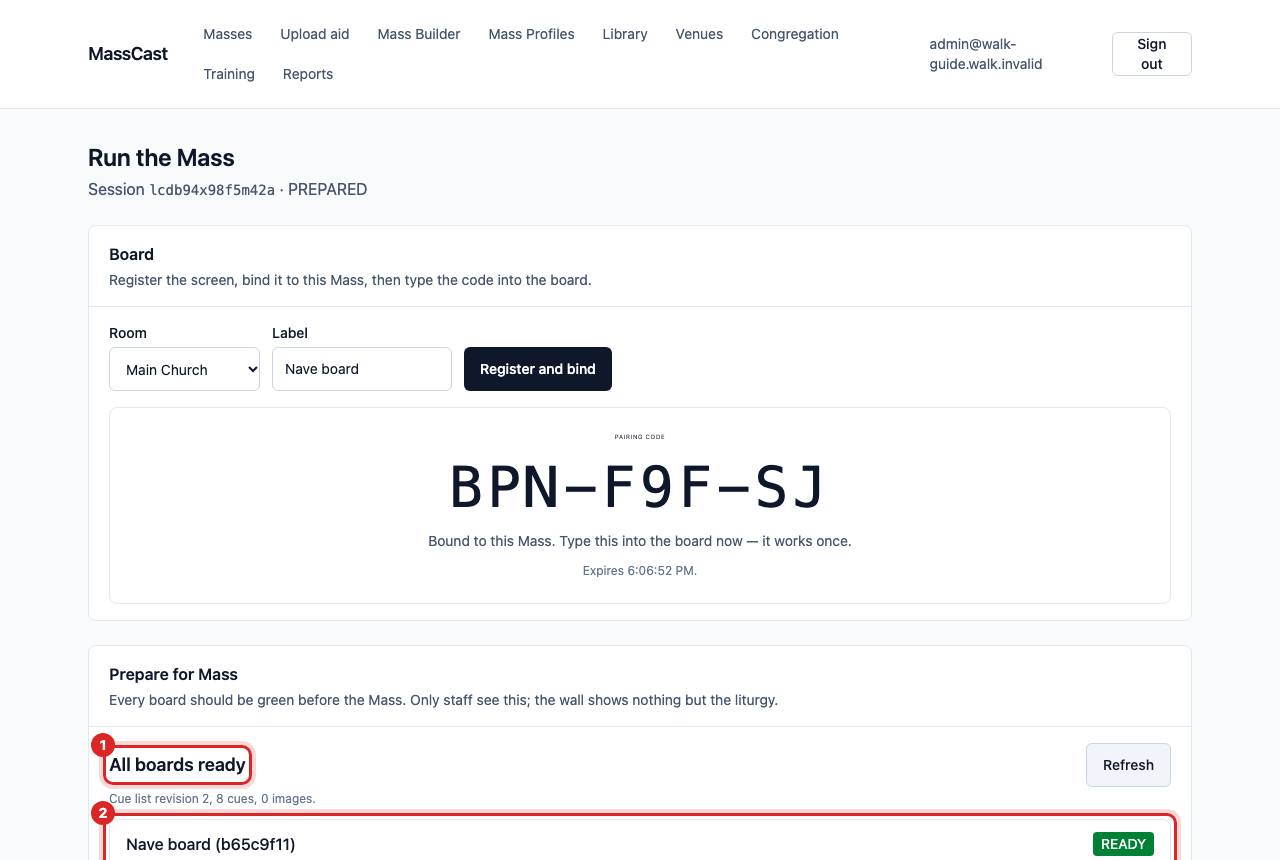
If something looks wrong
- If the screen says the code was not accepted, the code may have run out. Press Register and bind again for a new one.
- A dark board is normal. The board shows nothing until the volunteer starts the Mass, and it goes dark by itself whenever it is unsure what to show. It never shows an error on the wall.
- If a check stays red under Prepare for Mass, leave the board on and connected, then press Refresh.
The pictures were taken automatically on 2026-11-14 from a test parish with sample wording. Your screens show your own parish and your own words.