Build a Mass in the Mass Builder
Build the parts of a Mass in the Mass Builder.
Preparers
Screens captured from the MassCast demo world on 2026-11-14. Every name, address and number on the screens is invented. Prepared 15 November 2026.
Type the Mass straight into MassCast, part by part, when you do not have a worship aid PDF. It makes exactly the same cues as an uploaded aid.
Before you start
- A Mass on the Masses page (see Add a Mass to the calendar).
- The words for each part, and which licence covers them.
Steps
1. Choose the Mass to build
Preparer
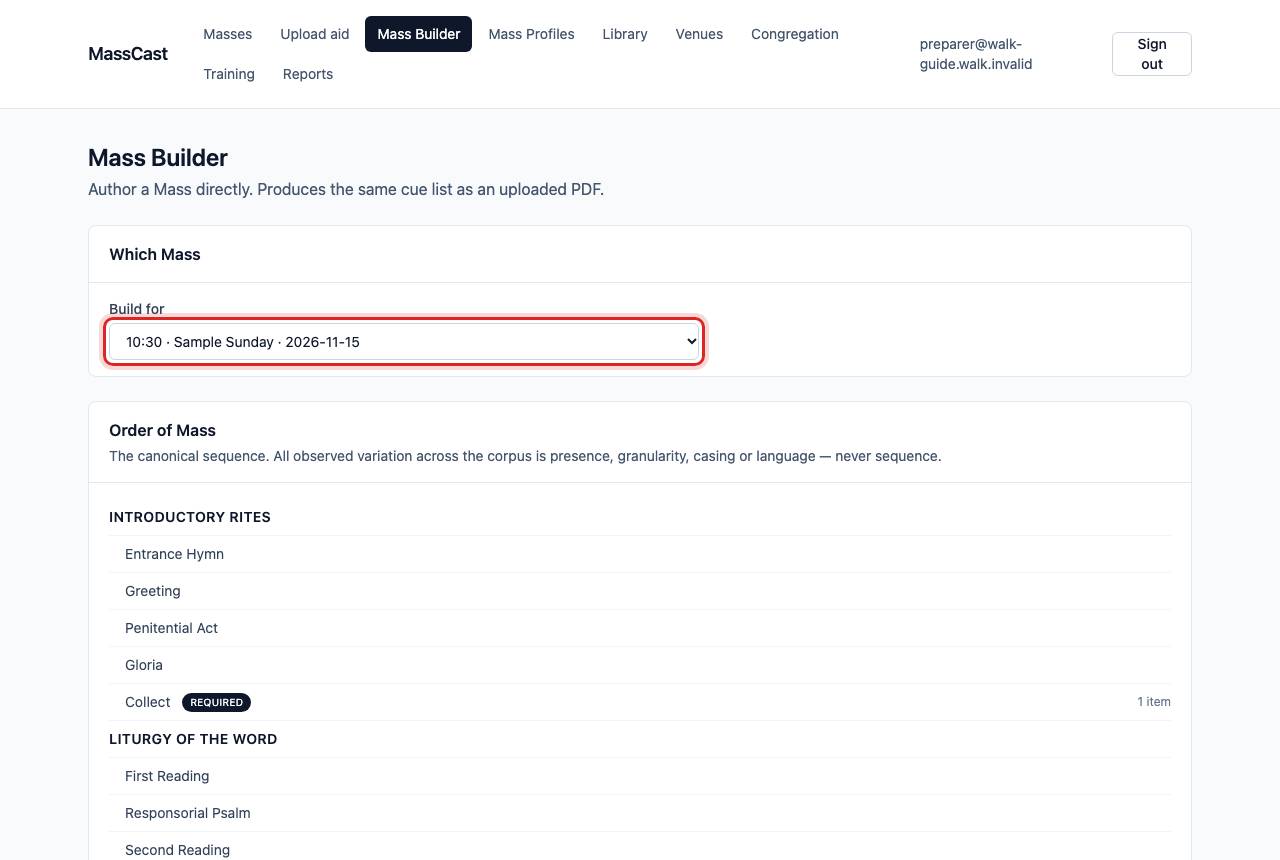
- Choose Mass Builder in the menu.
- In Build for, choose the Mass you added.
You should see: The Order of Mass on the left, and one card for each part MassCast needs at every Mass: the Collect, the Gospel, the Homily, the Sanctus, the Agnus Dei, and the Blessing and Dismissal.
2. Add any other parts
Preparer
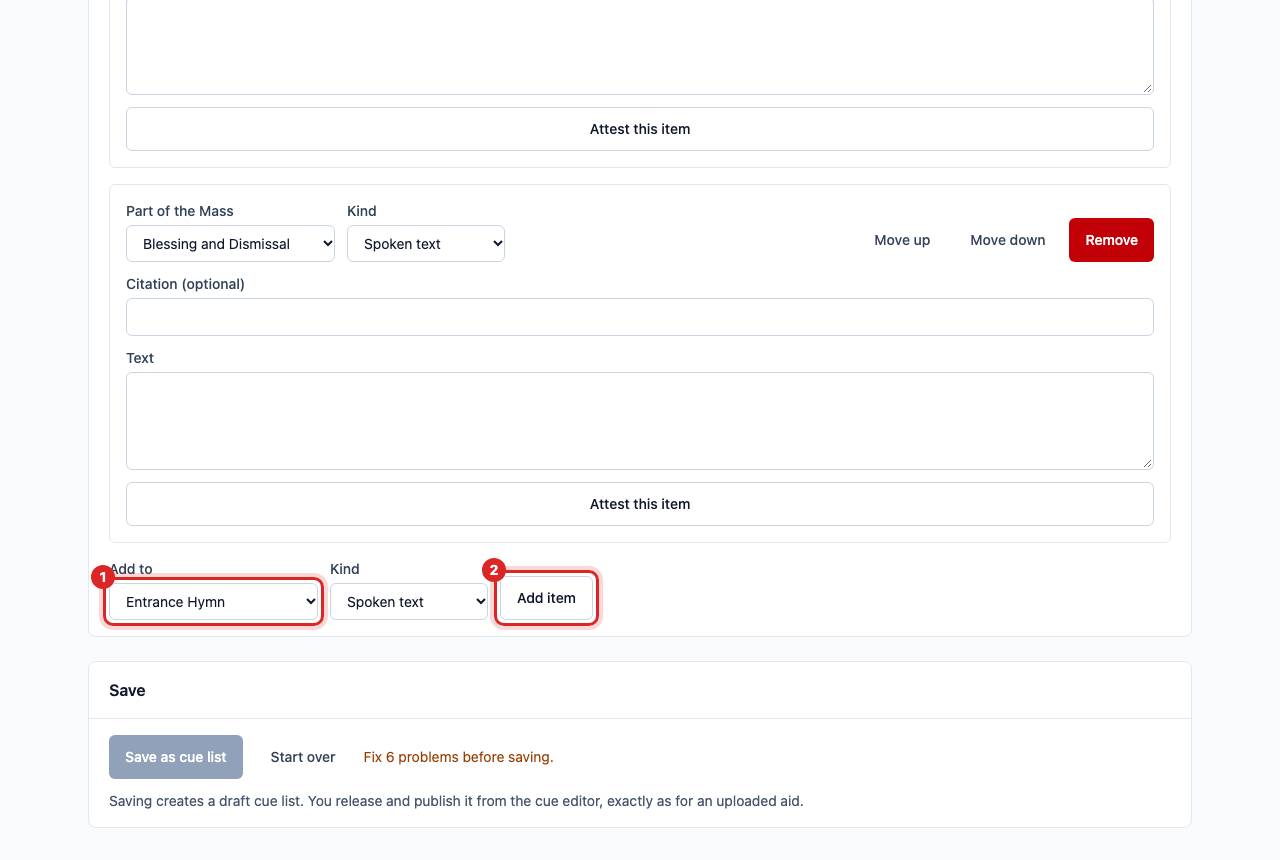
- Below the cards, in Add to, choose a part of the Mass, for example the Entrance Hymn or the First Reading, and what kind of item it is (spoken text, a song stanza, and so on).
- Press Add item. A new card appears for it.
3. Type the words for each part
Preparer
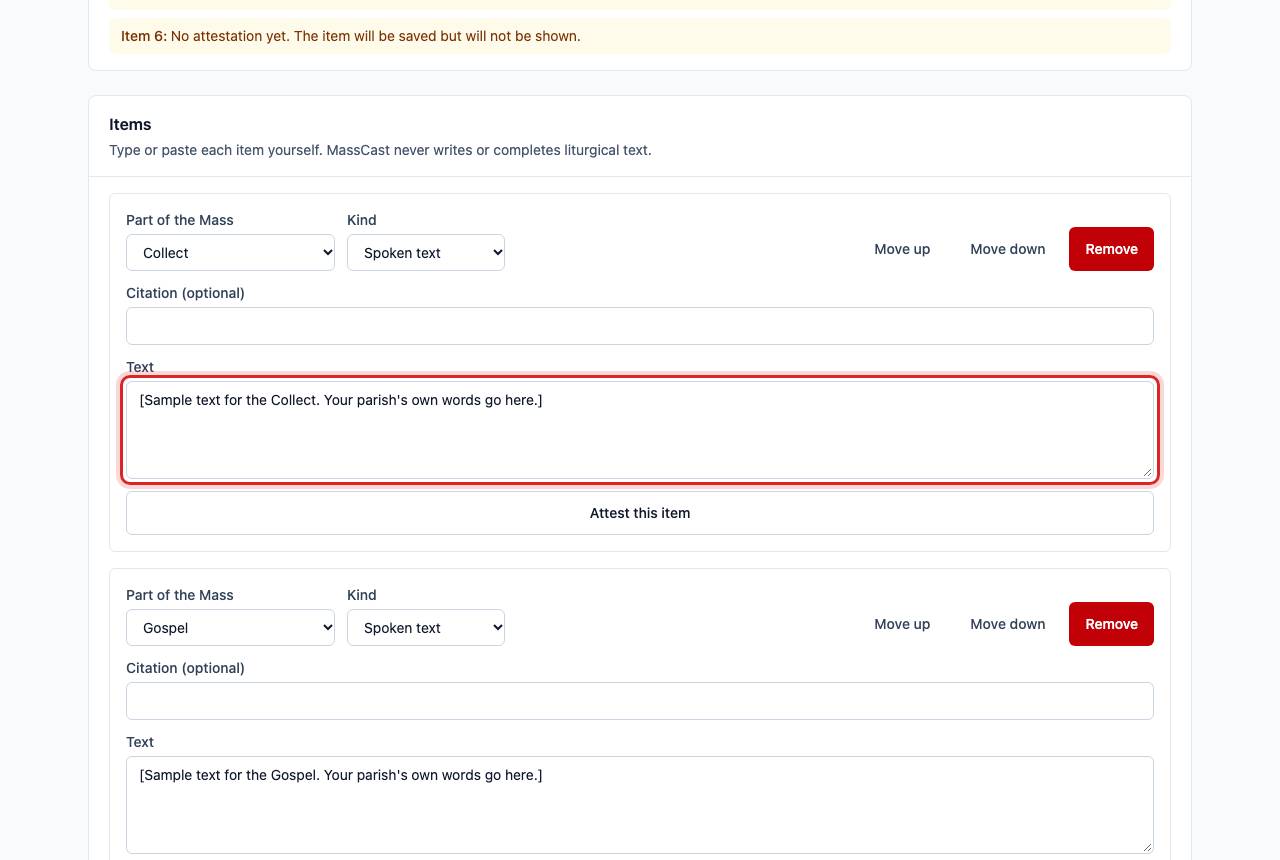
- In each card, type or paste the words the screen should show for that part.
- Use Move up and Move down to move a card, and Remove to take one out.
Tip: The pictures use placeholder words. Your screen will show your parish’s own text.
4. Say what licence covers each part
Preparer
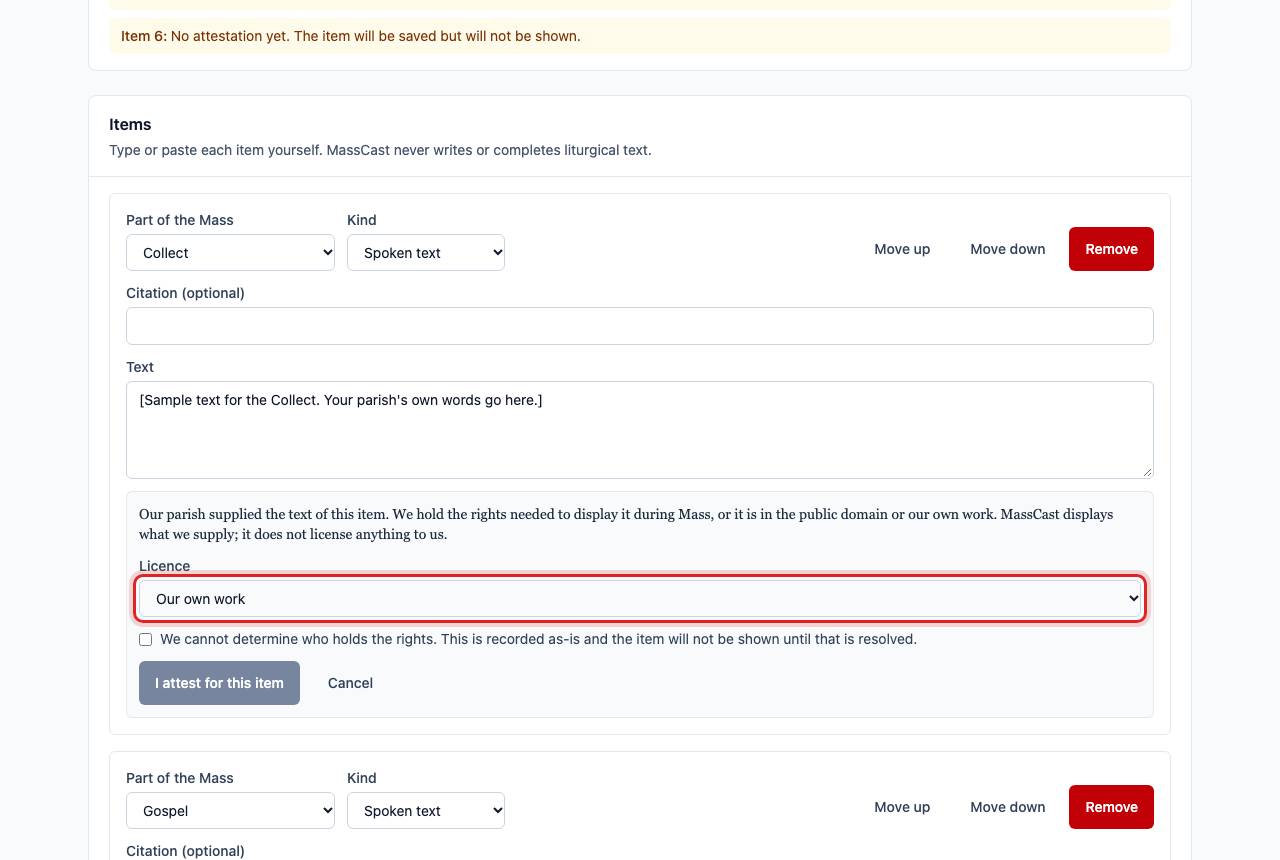
- On a card, press Attest this item.
- Read the statement. Choose the Licence your parish holds for these words, and the licence number if it asks.
- Press I attest for this item. Do this for every card.
Tip: MassCast records what you say; it does not check it or hold a licence for you.
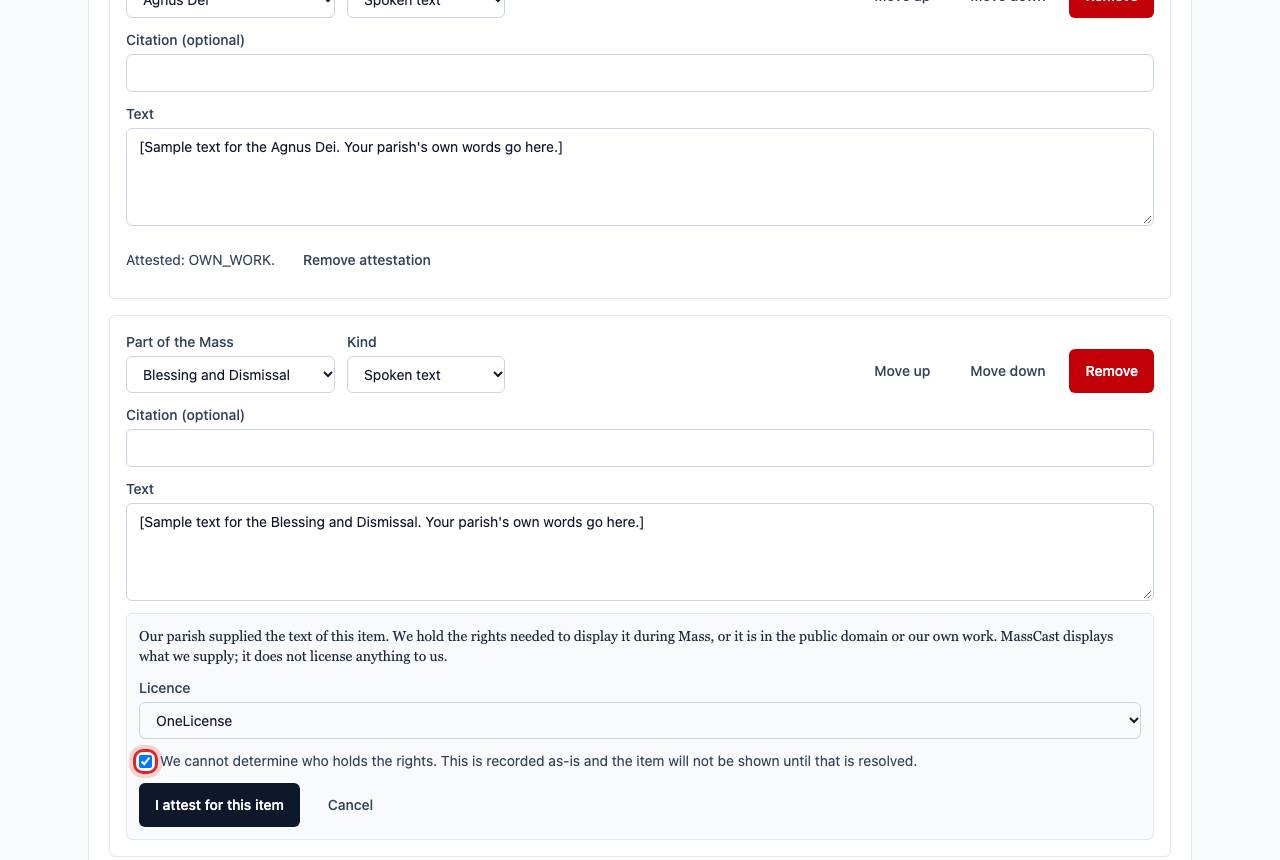
5. If you do not know who holds the rights
Preparer
- Tick We cannot determine who holds the rights.
- Press I attest for this item.
You should see: The part is kept, but it will not appear on any screen. You will name it when you release the Mass.
6. Check the review list and save
Preparer
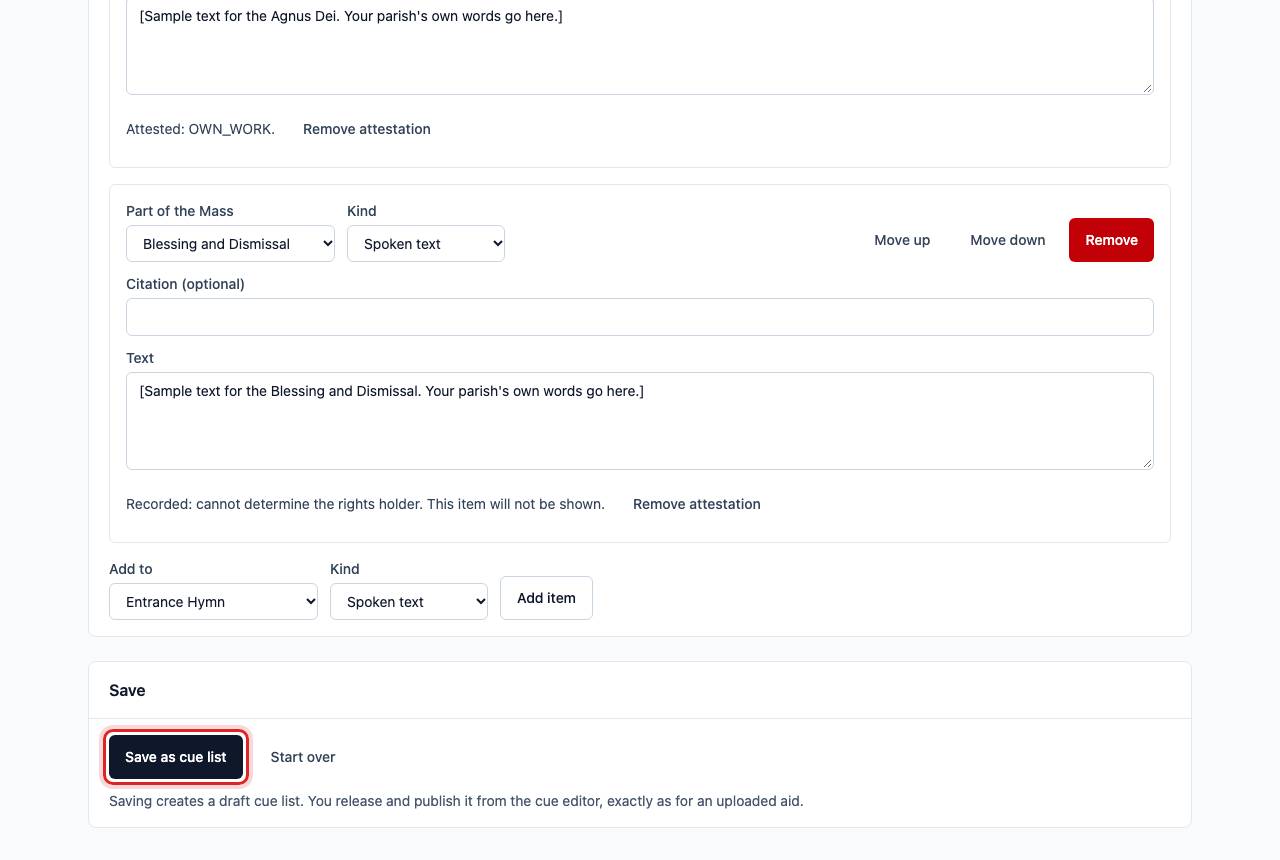
- Read the list at the bottom. It names anything out of order, missing, or not yet attested.
- When Save is available, press it.
You should see: MassCast saves the Mass and opens the cue editor, where you review and release it.
If something looks wrong
- If Save stays grey, read the review list at the bottom. It names the problem: a part out of order, or a part the Mass needs that is missing.
- Your work is kept in this browser as you type. Start over clears it.
The pictures were taken automatically on 2026-11-14 from a test parish with sample wording. Your screens show your own parish and your own words.