Review, release and publish a Mass
Check a Mass, release it and publish it.
Preparers
Screens captured from the MassCast demo world on 2026-11-14. Every name, address and number on the screens is invented. Prepared 15 November 2026.
Nothing reaches a wall until a person at your parish has checked the cues and released them. This guide covers the cue editor, cues with no known licence, release, and publishing the Mass.
Before you start
- A Mass with cues, from the Mass Builder or an uploaded aid.
- The printed aid or your notes, to check the cues against.
Steps
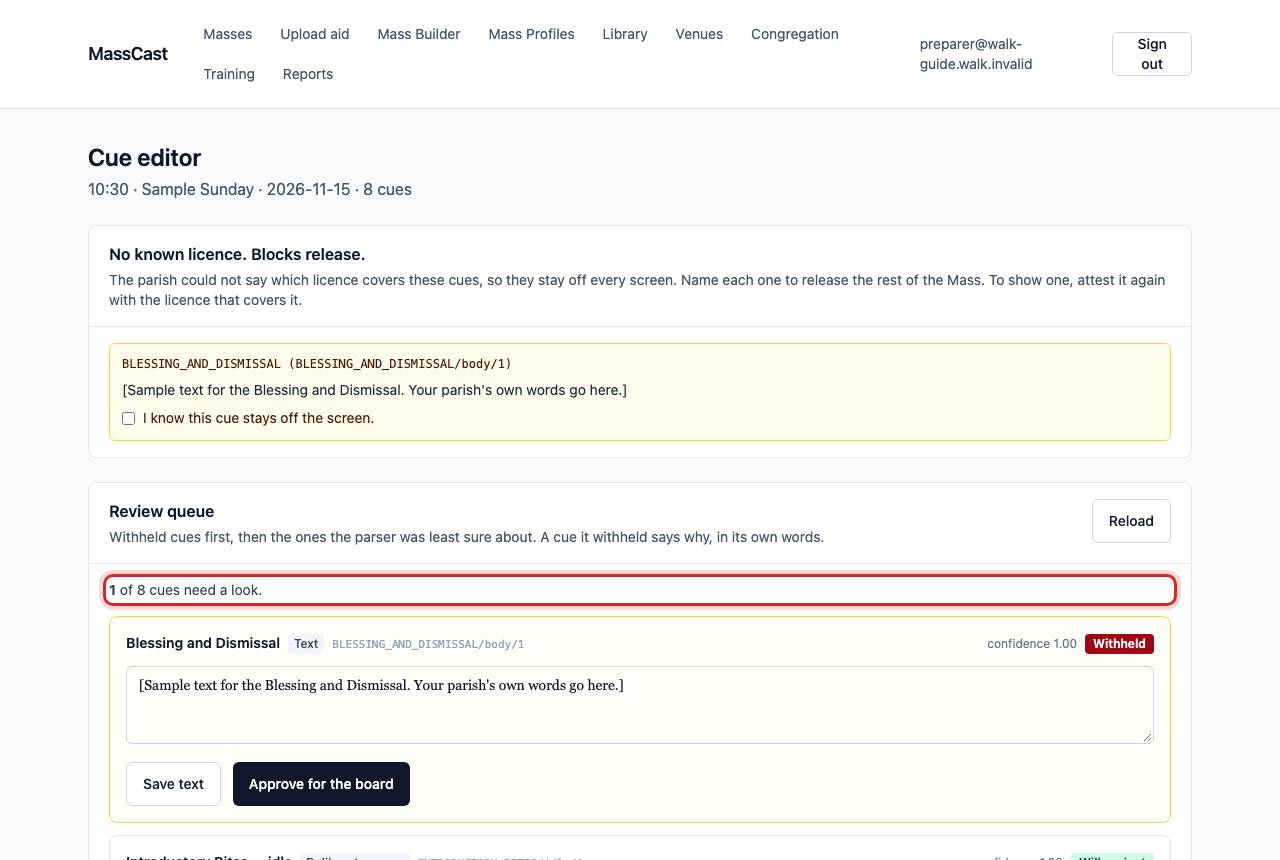
1. Open the cue editor
Preparer
- On the Masses page, press Review cues beside the Mass. (The Mass Builder opens it for you when you save.)
- Read the Review queue first. Cues held off the screen are listed first, then the ones MassCast is least sure about.
You should see: Every cue of the Mass, in order. Each one says Will project or why it is held back.
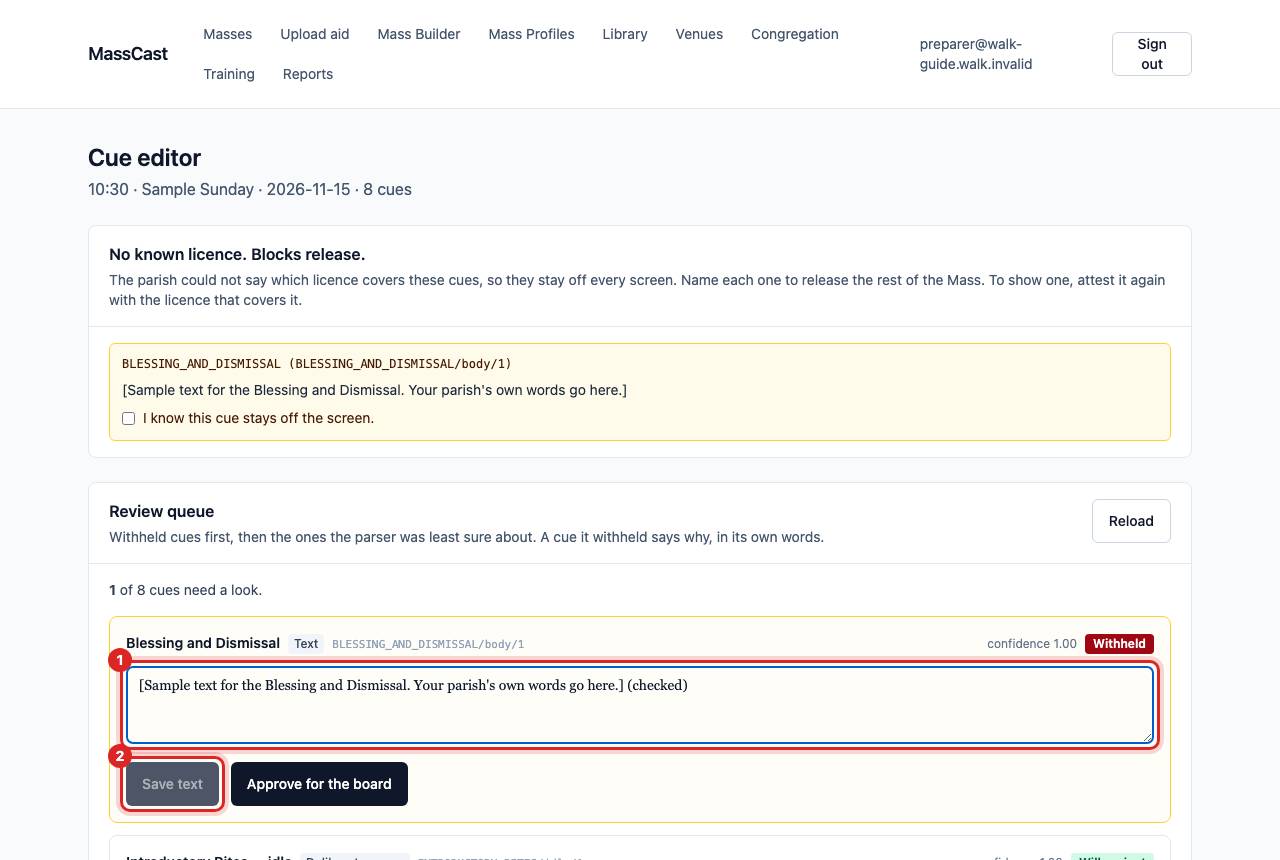
2. Correct a cue
Preparer
- Find the cue. Change its words in the box.
- Press Save text under it.
- To keep a cue off the wall without deleting it, press Withhold from the board.
Tip: Changing a cue after you release it takes the release back. Release again when you are done.
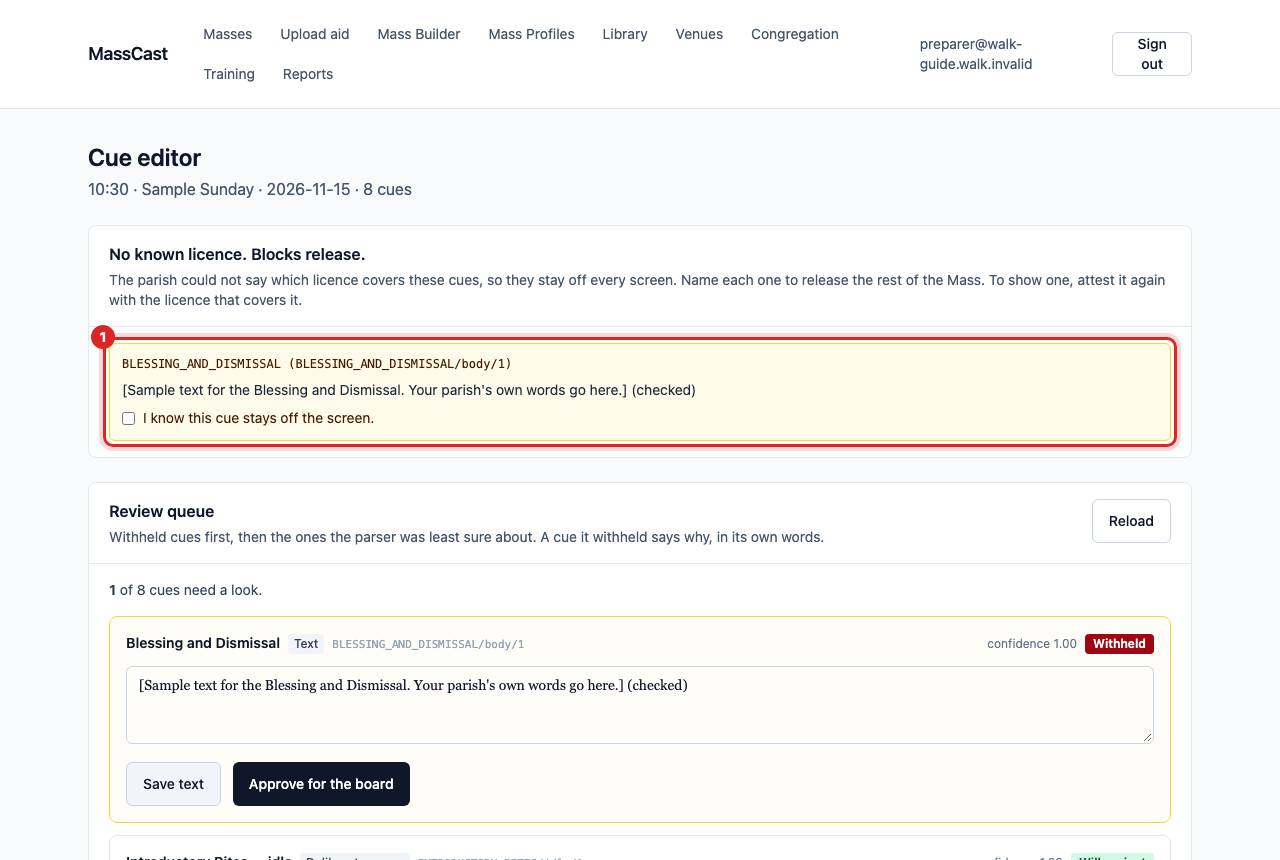
3. See which cues have no known licence
Preparer
- Look for the panel No known licence. Blocks release.
- Each cue in it stays off every screen, because nobody could say which licence covers it.
You should see: Release for the board stays greyed out, and says how many cues still need naming.
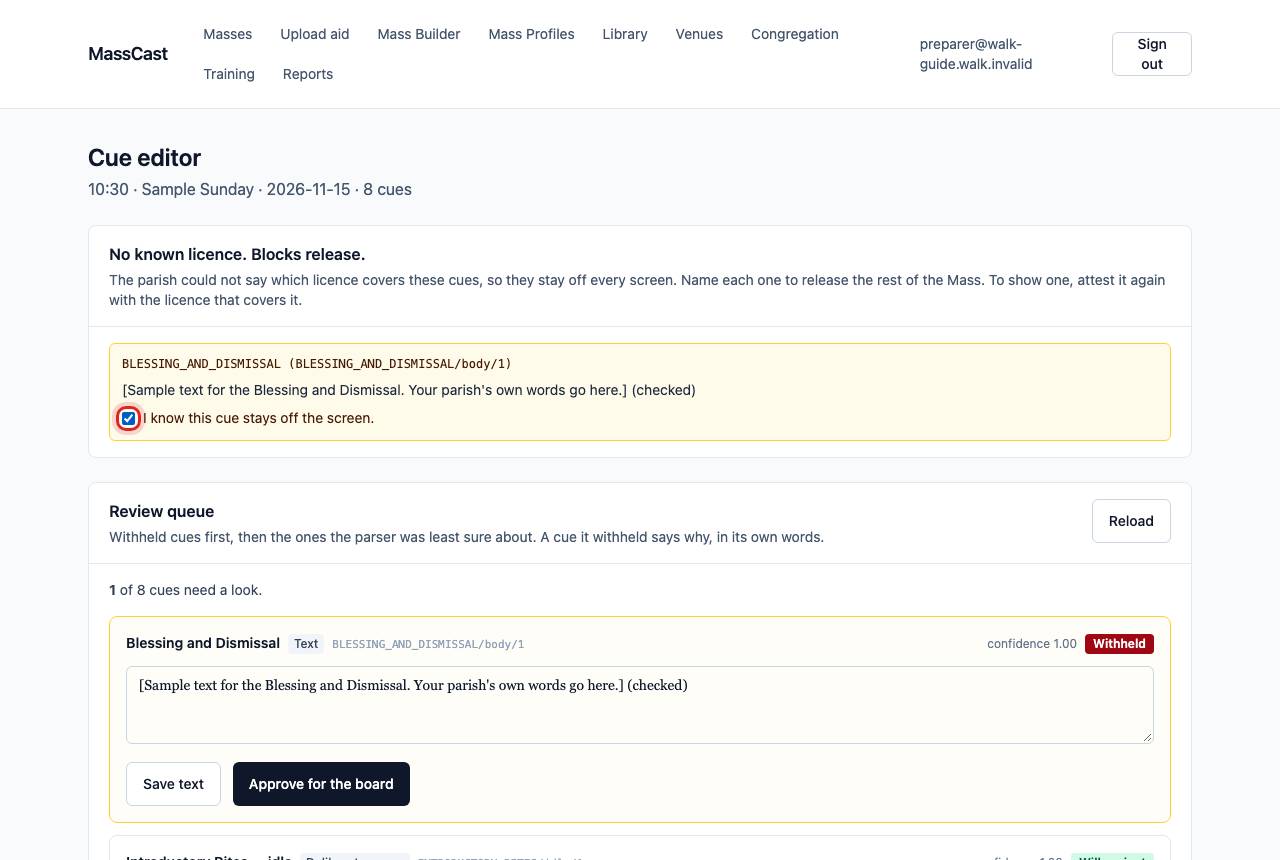
4. Name each withheld cue
Preparer
- Tick I know this cue stays off the screen for each cue in the panel.
- This does not put the cue on screen. It records that you know it will stay off.
Tip: To show one of these cues after all, go back and attest it with the licence that covers it.
5. Release the cues for the board
Preparer
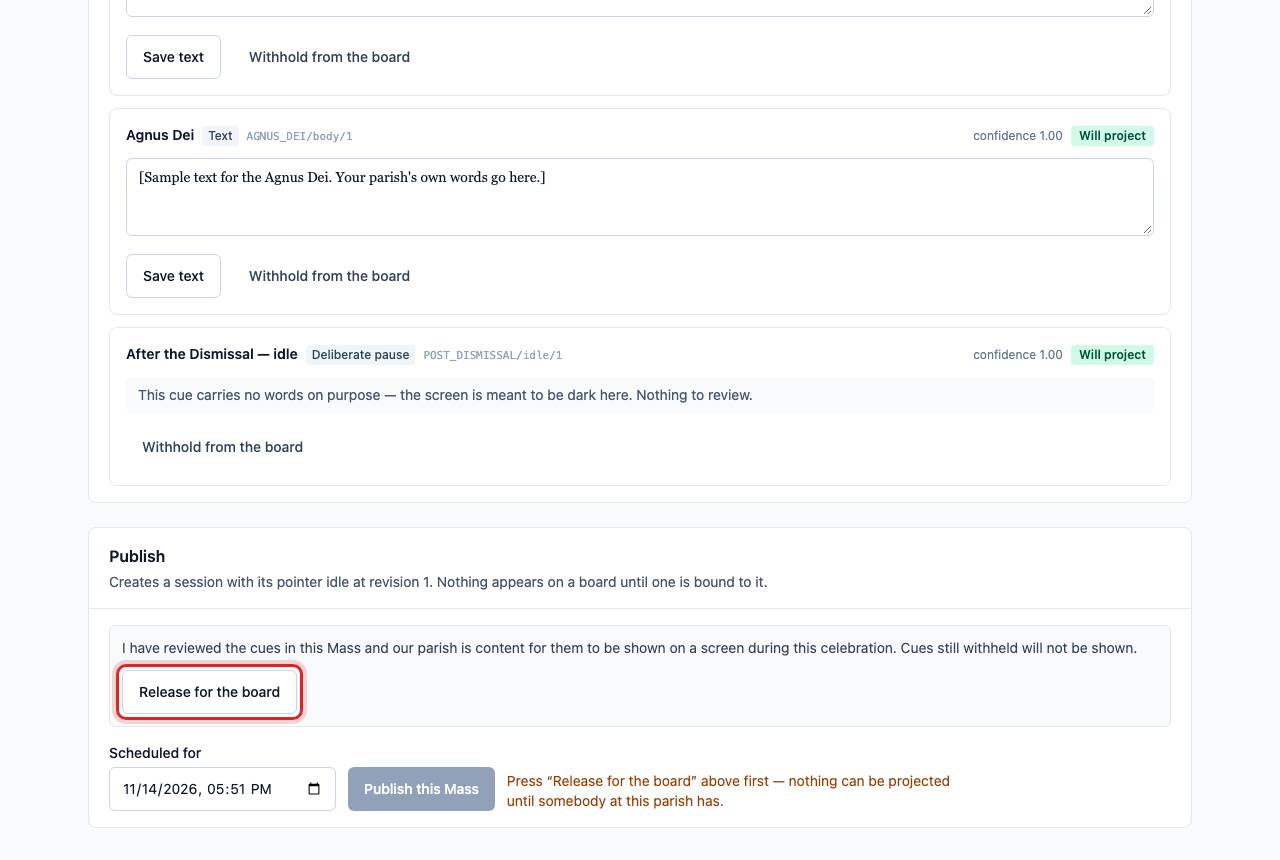
- Read the statement above the button.
- Press Release for the board.
You should see: The button reads Released for the board, and the note says a person at this parish has released this list.
6. Publish the Mass
Preparer
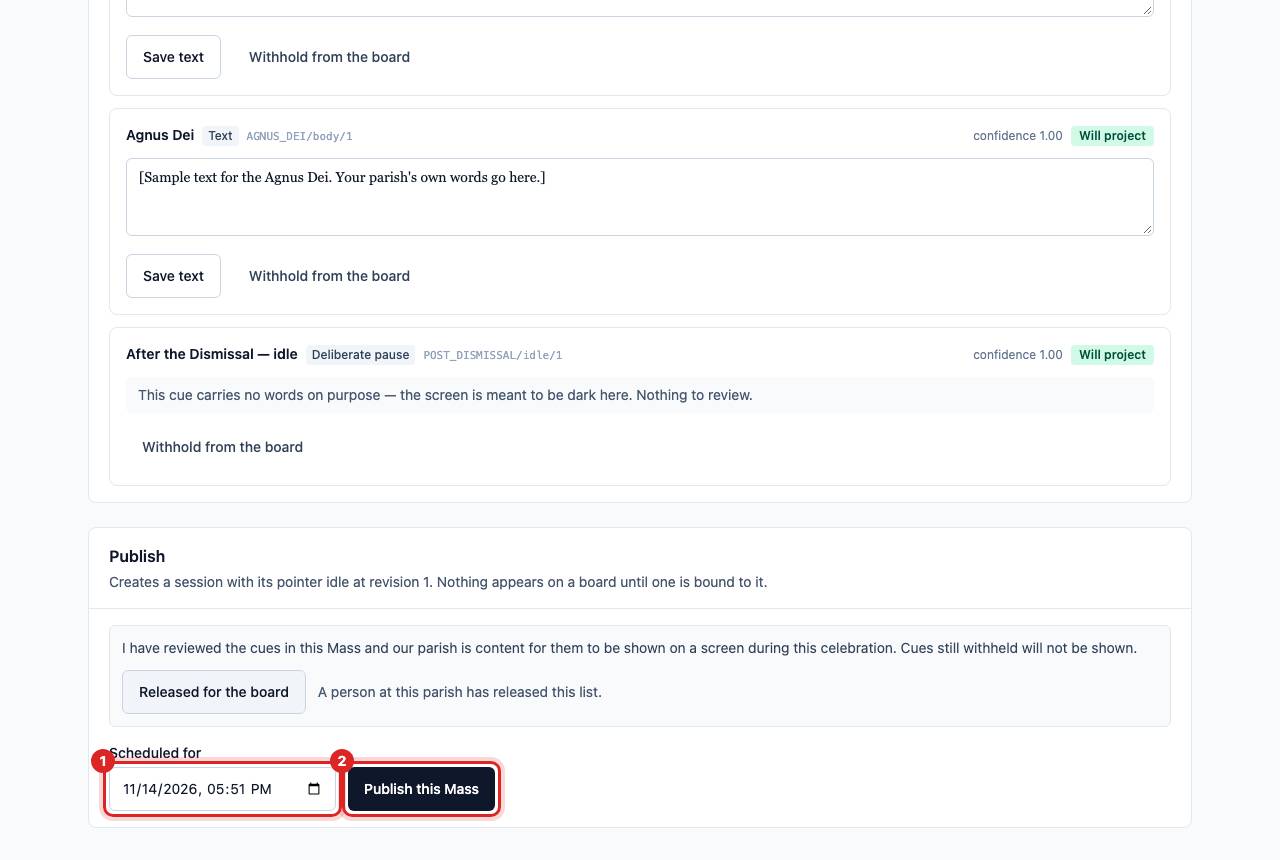
- In Scheduled for, set the date and time the Mass begins.
- Press Publish this Mass.
You should see: The Run the Mass page opens. That is where you connect the wall board and the volunteer’s phone.
If something looks wrong
- If Release for the board is grey, the note beside it says why: a cue out of order, or a cue with no known licence that still needs naming.
- Editing a cue after release takes the release back. Release it again, then publish.
The pictures were taken automatically on 2026-11-14 from a test parish with sample wording. Your screens show your own parish and your own words.